Enrichments
Set up an enrichment to add tags, links, or a rewritten summary to alerts that match a pattern. Rules run automatically whenever alerts are fetched, so everyone who opens the alert sees the same enriched view, and nothing is written back to the source. When several rules match the same alert, they apply in priority order, from highest to lowest, and a rule can match on tags that a higher-priority rule added in the same pass.
Before you begin
Ensure the following are in place:
-
OpsiMate is installed and running, and you are signed in with any role except Viewer. Viewers can see enrichments but cannot create, edit, or delete them. If you have not installed it yet, see Deploy.
-
Alerts must already be flowing into OpsiMate, so that there is something to enrich. If you have not connected a source yet, see Integrations Overview.
-
If your rule matches on labels, the labels you intend to match must exist on the incoming alerts. To see the labels that already appear on your alerts, open an alert and check the details panel. For more on the alert details panel, see Alert Management.
-
Decide whether you want to match by alert name, by label, or on all alerts. Enrichments with no criteria match nothing, so at least one criterion, or match-all, is required. The matcher behavior is the same as in mute policies, so if you have used those, the rules will look familiar. See Silences and Mute Policies.
Create an enrichment
-
Open Enrichment in the sidebar and select New enrichment.
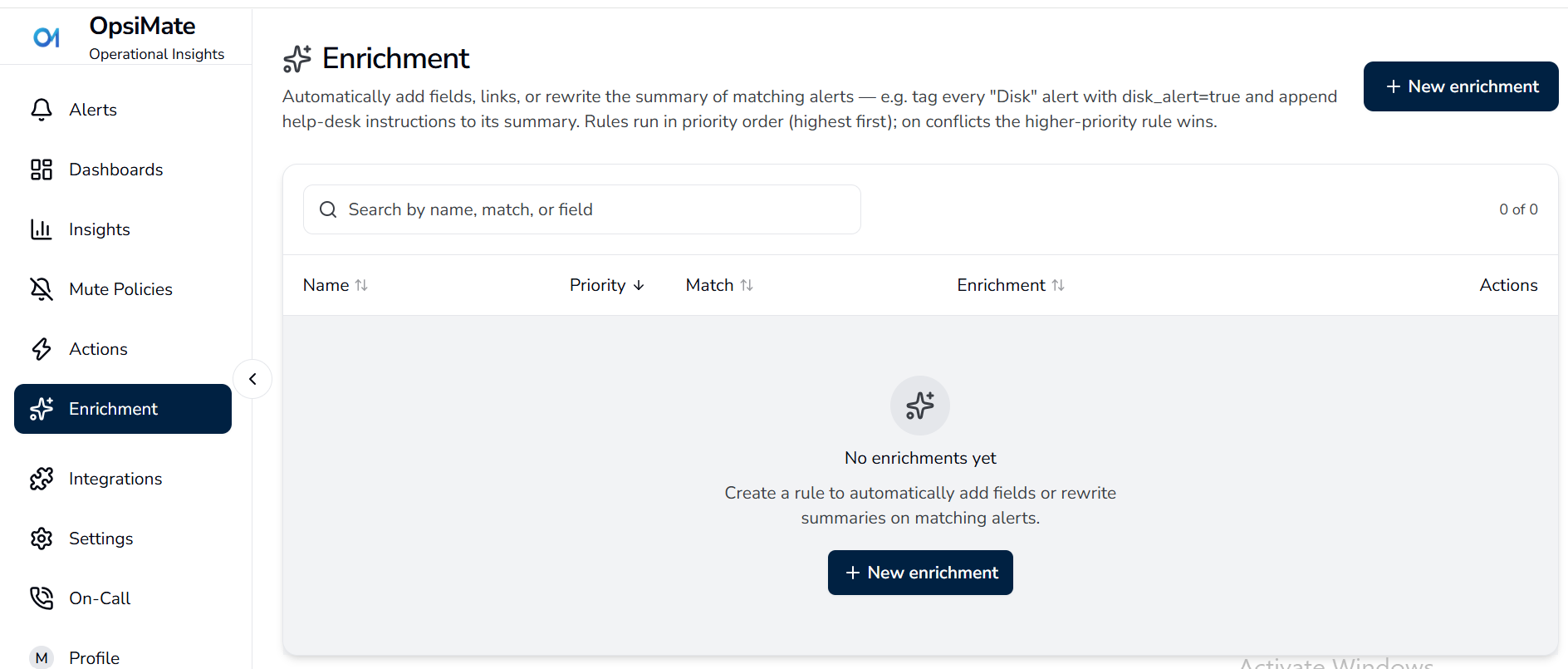
The New enrichment dialog opens with the fields you need to configure the rule.
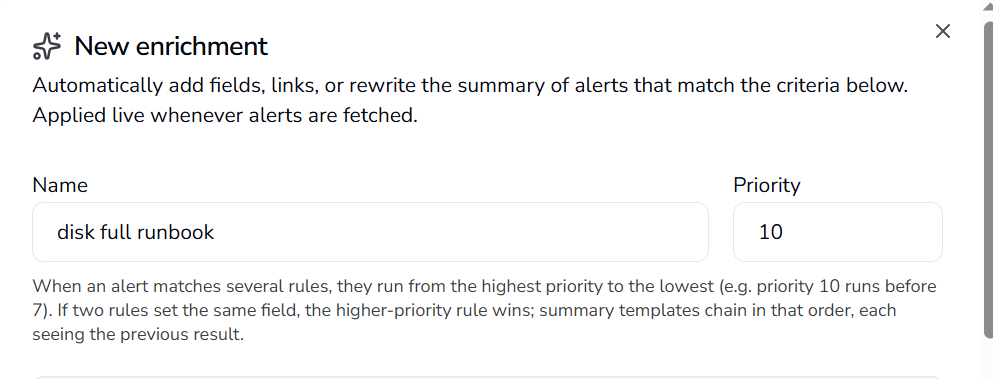
-
Enter a descriptive Name, such as
Tag disk alerts,disk full runbook, etc. -
Set a Priority. Higher numbers run before lower numbers. The default is
0. You can change this later by editing the rule. -
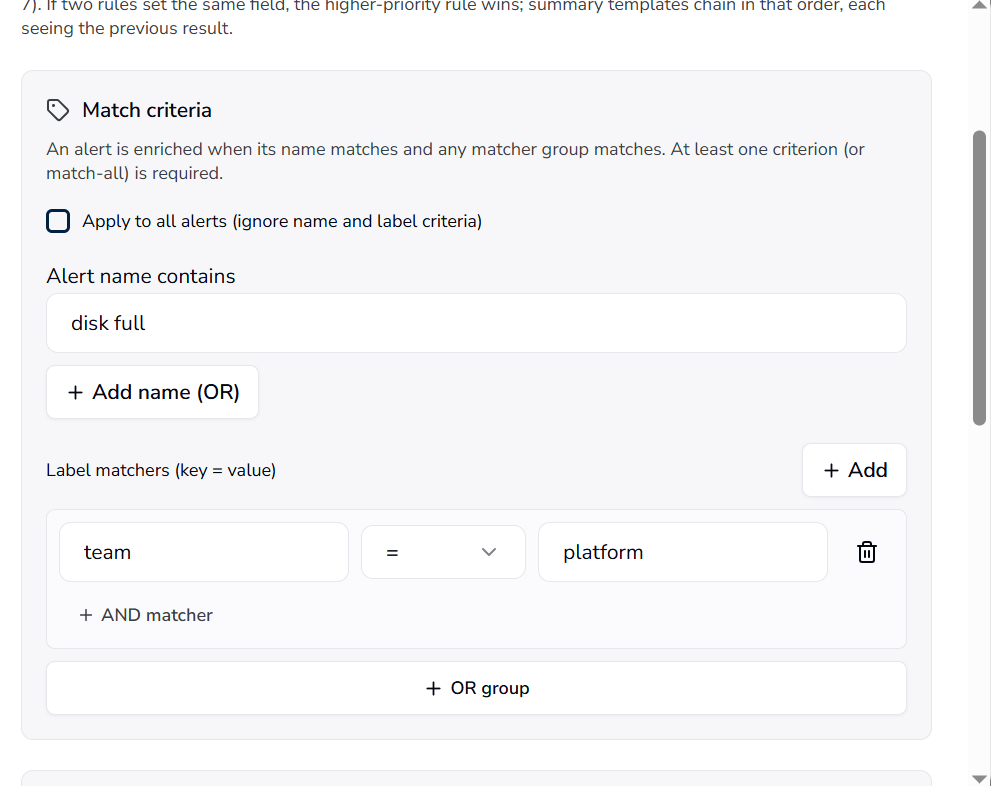
Under Match criteria, define how the rule identifies alerts. At least one criterion, or match-all, is required.
- In Alert name contains, enter one or more substrings. An alert matches if its name contains any of them, ignoring case. Select Add name (OR) to add another substring.
- In Label matchers (key = value), enter a key and value pair. Every matcher in a group must match the alert's tags. Select Add to add another matcher, and AND matcher to add it to the same group.
- Select OR group to add another group. An alert matches if any group matches.
- Select Apply to all alerts (ignore name and label criteria) to skip the name and label criteria entirely.
 warning
An enrichment with no match criteria and no match-all does not apply to any alert. If you want a rule to apply to every alert, select Apply to all alerts explicitly.
-
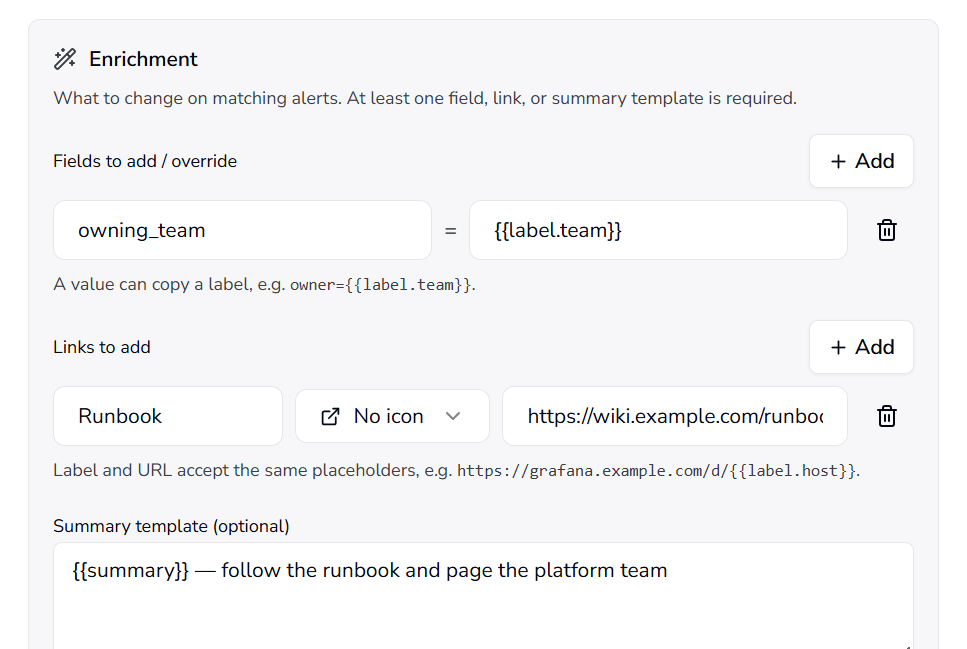
Under Enrichment, add what to change on matching alerts. At least one effect is required.
- In Fields to add / override, enter a key and value pair. Values can reference alert fields, for example
owning_team={{label.team}}. - In Links to add, enter a label, an optional icon, and a URL. The URL can reference alert fields.
- In Summary template, replace the alert summary. Use
{{summary}}to keep the existing one and append to it.
- In Fields to add / override, enter a key and value pair. Values can reference alert fields, for example
-
Select Create enrichment.
The new rule appears in the table and takes effect on the next fetch. No reload of the alert source is required.
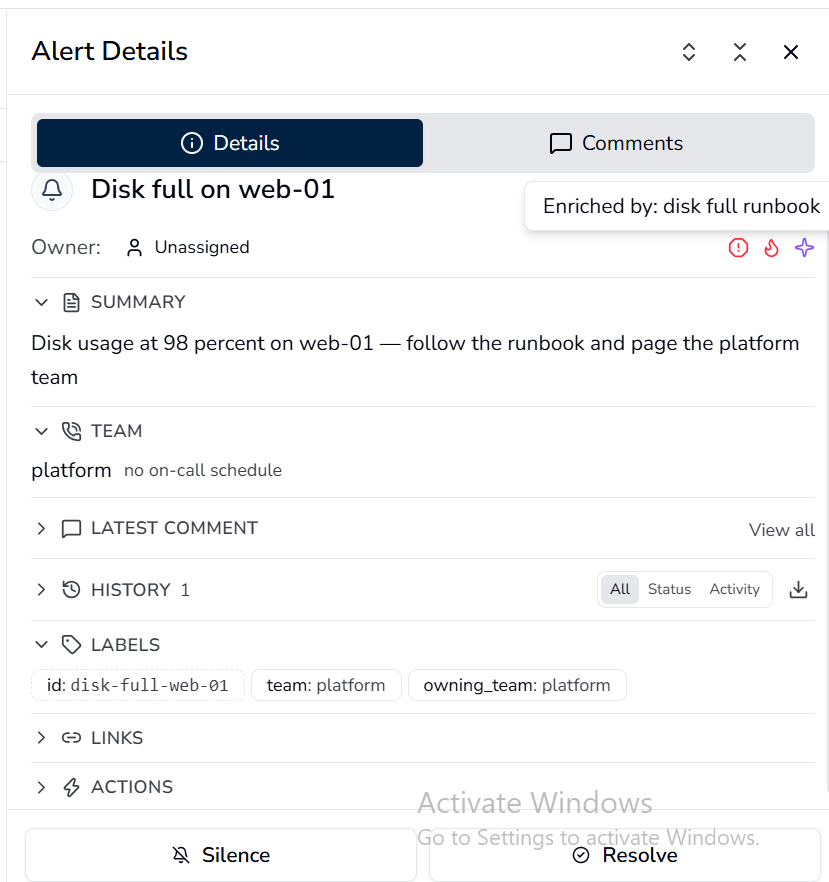
To confirm a rule is applying, open a matching alert. A violet sparkle icon appears in the details panel, next to the severity and status icons. Hover over it to see the names of the rules that enriched the alert.
The sparkle icon only appears when at least one rule actually enriched the alert. If you do not see it after creating a rule, the alert did not match the criteria. The icon lists every rule that matched, even one whose fields were already claimed by a higher-priority rule.
Worked example: enrich a disk full alert
Suppose an alert arrives with the name Disk full on web-01 and the tag team=platform. The platform team wants the alert to arrive already carrying a runbook link and a team label.
- Set Name to
disk full runbook. - Set Priority to
10. - Under Match criteria, in Alert name contains, enter
disk full. - Under Enrichment, in Fields to add / override, add:
- Key:
owning_team - Value:
{{label.team}}
- Key:
- In Links to add, add:
- Label:
Runbook - Icon: No icon
- URL:
https://wiki.example.com/runbooks/disk-full
- Label:
- In Summary template, enter:
{{summary}} — follow the runbook and page the platform team - Select Create enrichment.
On the next fetch, the alert arrives with an owning_team=platform label, a Runbook button, and the enriched summary. Anyone who opens the alert sees all three.
Match criteria
An alert matches when its name matches any name criterion and at least one label matcher group matches. All criteria are evaluated against the alert name and its current tags, including tags added by higher-priority rules.
| Criteria | How it matches |
|---|---|
| Alert name substrings | Any supplied substring may match. Matching is case-insensitive. |
| Labels within one group | Every matcher in that group must match. |
| Multiple label groups | Any complete group may match. |
| Name and label criteria together | Both the name condition and a label group must match. |
| Apply to all alerts | Ignores name and label criteria. |
Label equality compares the complete value and is case-sensitive. A label contains condition compares a substring case-insensitively. A missing label does not satisfy a matcher. An enrichment with no criteria matches nothing, so supply criteria or explicitly select Apply to all alerts.
These matcher rules are the same ones used by mute policies and actions, so a rule that works in one place behaves the same way in the others.
Effects
Each effect type is optional, but an enrichment must include at least one.
Fields to add / override
Add or override labels on the alert. Existing keys are overwritten. The value can be a literal or a template, for example owning_team={{label.team}}.
The key severity is treated specially. Its value is normalized to critical, warning, or info, and the alert's first-class severity is updated to match. Use this to reclassify alerts whose vendor sends a different word.
Links to add
Add buttons to the alert's LINKS section, next to any links the alert already has. Each link has a label, an optional icon, and a URL. The label and URL accept the same template placeholders as fields, for example https://grafana.example.com/d/{{label.host}}.
Available icon options: No icon, Grafana, Uptime Kuma, Google Cloud, Datadog, Zabbix, and Bell. Any unrecognized value renders the generic link icon.
If the alert has no links of its own, its legacy source and runbook URLs are preserved alongside the new ones.
Summary template
Replaces the alert summary. Use {{summary}} for the current summary, plus any alert field or label. New lines and basic HTML (<b>, <a>, lists) render in the alert details.
When several rules match, each rule's summary template sees the previous rule's output, so summaries compose in priority order. The default template for a new rule is {{summary}}, which keeps the existing summary and lets you append to it.
Template variables
Summary templates, field values, and link labels and URLs accept {{...}} placeholders. The same variables are used in action templates, so a template that works in one place works in the other.
| Variable | Value |
|---|---|
{{name}} | Alert name |
{{id}} | Alert ID |
{{status}} | Alert status |
{{type}} | Alert type |
{{summary}} | Current summary |
{{severity}} | Normalized severity |
{{service}} | Service tag |
{{startsAt}} | Alert start time |
{{updatedAt}} | Last updated time |
{{createdAt}} | Creation time |
{{url}} | Alert URL |
{{runbookUrl}} | Runbook URL |
{{label.<key>}} | Any label on the alert, for example {{label.team}} |
Each variable also resolves under an alert.* alias, and each label under tag.* and alert.tags.*. Unknown placeholders are left in the output as-is.
The Available variables picker below the summary template lists every variable, including the label keys that already appear on your alerts. Select one to insert it into the field you are editing.
Priority and conflicts
When several rules match the same alert, they run from the highest priority to the lowest. The tie-breaker is creation order, with the older rule running first.
If two rules set the same field, the higher-priority rule's value wins. The rule that runs second cannot see the field a first rule already claimed.
Summary templates are an exception: they always run, and each rule sees the previous rule's output. This lets a lower-priority rule append to a summary that a higher-priority rule produced.
A rule can match on a label that a higher-priority rule added in the same pass. This is how you build layered rules, where one rule classifies an alert and a second rule reacts to that classification.
Rules are not reordered when a new one is created. If you want a new rule to run before an existing one, set its priority higher and confirm the order in the table.
Severity normalization
When an effect sets the key severity, its value is mapped to one of three levels. This is how vendor-specific words such as Zabbix's Disaster or Datadog's error collapse onto the same scale.
| Level | Values that map to this level |
|---|---|
| critical | critical, crit, disaster, emergency, fatal, error, high, p1 |
| warning | warning, warn, average, moderate, medium, p2, p3 |
| info | info, information, informational, notice, low, ok, p4, p5 |
Matching is case-insensitive. Any value that does not appear in the table falls back to warning.
A severity value not in the table does not keep its original word. It becomes warning, which can change how the alert is prioritized. If your alerts use a vendor word that is not listed here, do not rely on the enrichment to preserve it.
The normalized value is written to the alert's severity field and to the severity label, so the alert table, the details panel, and filters all agree.
Manage enrichments
Use the Enrichment page to review, update, and remove rules.
- Open Enrichment in the sidebar.
- Find the rule in the table. The list is shown in execution order, highest priority first. Each row shows the rule in the Name, Priority, Match, and Enrichment columns. The Match column shows the criteria as badges, and the Enrichment column shows the effects as badges.
- Use the search box to filter by name, match, or field when the list is long.
- Use the icons on the right of each row under Actions to act on a rule:
- The copy icon duplicates the rule into a new one, with the name suffixed
(copy). Useful when a new rule is close to an existing one. - The history icon opens the rule's audit history.
- The pencil icon edits the rule. Changes take effect on the next fetch.
- The trash icon deletes the rule. Matching alerts stop being enriched immediately.
- The copy icon duplicates the rule into a new one, with the name suffixed
To see which rules were applied to a specific alert, open the alert and hover over the violet sparkle icon in the details panel. The tooltip lists every matching rule by name, in priority order.
Every create, edit, and delete is recorded in the audit log with the acting user, the rule name, and a summary of the change. For audit details, see Audit Logs.
Example rules
Attach a Kubernetes runbook to any alert whose name mentions kubelet:
| Setting | Value |
|---|---|
| Name | kubelet runbook |
| Alert name contains | kubelet |
| Link label | Runbook |
| Link URL | https://wiki.example.com/runbooks/kubelet |
| Priority | 10 |
Tag every database alert with the owning team, pulled from a label:
| Setting | Value |
|---|---|
| Name | db owner |
| Alert name contains | database, postgres, mysql |
| Label matcher | env = production |
| Key | owning_team |
| Value | {{label.team}} |
| Priority | 5 |
Promote every production database alert to critical, whatever severity the source sent:
| Setting | Value |
|---|---|
| Name | prod db critical |
| Alert name contains | database, postgres, mysql |
| Label matcher | env = production |
| Key | severity |
| Value | critical |
| Priority | 1 |
Severity is already normalized when an alert arrives, so a rule that sets severity to {{severity}} changes nothing. Set a literal level, or copy a vendor label such as {{label.priority}} and let normalization map it.
Clean up
Remove an enrichment when it is no longer needed, when it was created for a temporary purpose, or when it is being replaced by a better rule.
- Open Enrichment in the sidebar.
- Find the rule in the table. Use the search box if the list is long.
- Select the trash icon on the rule's row.
- Confirm the deletion in the dialog.
The rule is removed immediately, and matching alerts stop being enriched on the next fetch. Because enrichments are applied at fetch time and are not written back to the alert source, alerts that were previously enriched by this rule lose the fields, links, and summary it applied.
Every deletion is recorded in the audit log with the acting user, the rule name, and a summary of the change. For audit details, see Audit Logs.